

We’re thrilled to introduce ‘ab Advanced Visualiser HOA’ and ‘ab Advanced Visualiser HOA Pro’ - two powerful tools designed to enhance how you monitor, analyse, and visualise your Ambisonics mixes and recordings.
Both editions support First through Seventh Order Ambisonics (1OA-7OA*), automatically adapting to the incoming signal’s order, depending on your DAW’s capabilities.
‘ab Advanced Visualiser HOA’ provides four essential visualisers to monitor spatial energy distribution, directional loudness, and acoustic balance throughout your three-dimensional soundfield.
‘ab Advanced Visualiser HOA Pro’ takes spatial audio analysis further with 14 visualisers, offering detailed insight into phase coherence, transients, and frequency distribution. It also introduces a modular workspace, custom spatial analysis regions, interactive 3D and 360° video visualisation, a standalone application, and real-time OSC output.
IMPORTANT:
This guide covers both editions of ‘ab Advanced Visualiser HOA’. Features marked with (BASIC & PRO) are available in both Basic and Pro. All other features are exclusive to Pro.
Both products are designed to work with three-dimensional Ambisonics signals. Depending on your DAW, please refer to the end of this guide for specific setup instructions, compatibility notes, and tips.
Set-Up
There’s nothing special you need to do here! Simply insert ‘ab Advanced Visualiser HOA’ or ‘ab Advanced Visualiser HOA Pro’ into an Ambisonics track, and the plugin will automatically detect the incoming signal’s order (1OA-7OA) and adapt its visualisations accordingly.
Please note that both plugins require AmbiX signals and are not compatible with Mono, Stereo, or other discrete-channel signals. Make sure your audio is encoded into Ambisonics before running it through either visualiser.
Pro Only: ‘ab Advanced Visualiser HOA Pro’ also includes a standalone application, which is initially placed in your VST3 folder (feel free to move it wherever it suits you best), allowing you to import and analyse Ambisonics audio and video recordings without a DAW, with built-in stereo decoding for monitoring.
ab Advanced Visualiser HOA

‘ab Advanced Visualiser HOA Pro’ features a fully modular interface, allowing you to build and customise your own spatial audio analysis workspace.
At the top of the plugin window, you’ll find 14 visualiser buttons, organised into four categories: Soundfield, Planes, Frequency, and Levels.
Simply click any button to open its corresponding visualiser, or drag and drop it into the workspace to position it exactly where you want. Visualisers automatically snap to the edges and corners of the window, making it easy to arrange multiple visualisers side by side.
You can open multiple instances of the same visualiser, resize and rearrange them freely, and create a workspace tailored to your immersive audio analysis needs.
To remove a visualiser from your workspace, simply click the ‘X’ button in the corresponding module.
Soundfield Visualisers
The Soundfield Visualisers provide a real-time, three-dimensional representation of your Ambisonics signal, allowing you to explore how sound energy, transients, and phase coherence are distributed throughout the soundfield.
This category includes four visualisers: RMS (BASIC), Onset, Phase Coherence, and Scene, each offering a different perspective on your immersive audio mix.
Soundfield RMS (BASIC & PRO)
The RMS Visualiser provides a real-time, three-dimensional representation of your soundfield’s energy distribution, allowing you to identify where sound is concentrated throughout your Ambisonics mix.
Using an intuitive colour-coded display, quieter regions appear in dark green, gradually transitioning through green, yellow, orange, and red as energy increases.
The FOCUS slider lets you adjust the level of detail displayed, filtering out quieter regions to emphasise the most prominent sound sources and their spatial distribution.
Additional Controls (Pro Only)
Scene Integration: The FOCUS slider also controls how the RMS visualisation is displayed in the Scene Visualiser. Any adjustments are automatically reflected in both visualisers.
HPF (High-Pass Filter): Filters low-frequency content from the analysis to help reduce unwanted visual activity caused by bumps, thuds, and low-frequency rumble.
BRUSH: Allows you to paint custom regions directly onto the soundfield, defining specific areas for detailed spectral analysis using the Frequency Visualisers.
Important: Both HPF and BRUSH are global controls shared across the RMS, Onset, and Phase Coherence Soundfield Visualisers. Any changes made to either control in one visualiser are automatically applied to all three.
Soundfield Onsets (PRO ONLY)
The Onset Visualiser provides a real-time, three-dimensional representation of transient activity throughout your Ambisonics soundfield, allowing you to identify where sudden attacks and percussive sounds originate.
Transients are displayed using a blue colour scale, with darker shades representing quieter transients and brighter shades, approaching white, indicating louder ones.
The LOUD PEAKS / QUIET PEAKS slider allows you to adjust the sensitivity of the visualisation, filtering transient activity to focus on stronger attacks or reveal quieter details throughout the soundfield.
Additional Controls
Scene Integration: The LOUD PEAKS / QUIET PEAKS slider also controls which transients are displayed in the Scene Visualiser. Any adjustments are automatically reflected in both visualisers.
HPF (High-Pass Filter): Filters low-frequency content from the analysis to help reduce unwanted visual activity caused by bumps, thuds, and low-frequency rumble.
BRUSH: Allows you to paint custom regions directly onto the soundfield, defining specific areas for detailed spectral analysis using the Frequency Visualisers.
Important: Both HPF and BRUSH are global controls shared across the RMS, Onset, and Phase Coherence Soundfield Visualisers. Any changes made to either control in one visualiser are automatically applied to all three.
Soundfield Phase Coherence (PRO ONLY)
The Phase Coherence Visualiser provides a real-time, three-dimensional representation of phase coherence throughout your Ambisonics soundfield, allowing you to identify where sound is coherent, diffuse, or out of phase.
Using an intuitive colour-coded display, brighter regions indicate stronger phase coherence, while darker regions represent increasingly diffuse or out-of-phase sound.
The IN-PHASE / DIFFUSE slider features two adjustable handles, allowing you to isolate and visualise a specific range of phase coherence. Move the handles to focus on coherent sound sources, diffuse spatial information, or anything in between.
Additional Controls
Scene Integration: The IN-PHASE / DIFFUSE slider also controls the range of phase coherence displayed in the Scene Visualiser. Any adjustments are automatically reflected in both visualisers.
HPF (High-Pass Filter): Filters low-frequency content from the analysis to help reduce unwanted visual activity caused by bumps, thuds, and low-frequency rumble.
BRUSH: Allows you to paint custom regions directly onto the soundfield, defining specific areas for detailed spectral analysis using the Frequency Visualisers.
Important: Both HPF and BRUSH are global controls shared across the RMS, Onset, and Phase Coherence Soundfield Visualisers. Any changes made to either control in one visualiser are automatically applied to all three.
Soundfield Scene (PRO ONLY)
The Scene Visualiser combines advanced spatial audio analysis with video integration and interactive 2D/3D visualisation. Due to its extensive capabilities, it is covered in a dedicated section later in this guide.
Custom Spatial Regions (Brush) (PRO ONLY)
The Brush Tool allows you to draw custom regions directly onto your three-dimensional Ambisonics soundfield, giving you precise control over which spatial areas you want to analyse using the Frequency Visualisers.
You can create up to four independent, colour-coded regions, each consisting of one or multiple painted areas. These regions don’t need to be continuous.
Click BRUSH in any of the three Soundfield Visualisers (RMS, Onset, or Phase Coherence) to reveal the painting controls:
Regions (1–4): Select one of four independent drawings, each identified by a different colour.
Brush: Paint directly onto the soundfield to define the areas you want to analyse.
Eraser: Remove specific portions of an existing drawing without affecting the rest.
Clear: Erase the entire selected drawing and start again.
Brush Size: Adjust the brush’s size from 3° to 45° for precise or broader spatial selections.
Overlap Mode: Choose how drawings interact when they overlap. In Add mode, regions can overlap freely. In Exclude mode, painting over another region removes the overlapping area from that region.
All four regions are shared globally across the RMS, Onset, and Phase Coherence Soundfield Visualisers, meaning any changes made in one are immediately reflected in the others.
Once you’ve defined your regions, you can select them individually or in combination within the Spectrum, Spectrogram, and Waterfall Visualisers, allowing you to analyse the frequency content of specific areas of your immersive soundfield rather than the entire Ambisonics mix.
Plane Visualisers
The Planes Visualisers provide a real-time representation of your Ambisonics soundfield across three perpendicular planes, allowing you to analyse how sound behaves along the horizontal and vertical dimensions.
Unlike the Soundfield Visualisers, which display the entire three-dimensional soundfield in a single view, the Planes Visualisers offer three simultaneous perspectives, making it easier to identify spatial characteristics and relationships across different directions.
This category includes four visualisers: Energy (BASIC & PRO), Time (PRO ONLY), Phase Coherence (PRO ONLY), and Frequency (PRO ONLY).
Each plane also features a FLIP checkbox, allowing you to reverse its orientation independently.
Planes Energy (BASIC & PRO)
The Energy Visualiser provides a real-time representation of your Ambisonics soundfield’s energy distribution across three perpendicular planes, allowing you to analyse how sound is distributed around the listener.
Unlike traditional stereo vectorscopes, which display energy across a single plane, the Energy Visualiser offers three simultaneous perspectives:
Horizontal Plane (Left/Right – Front/Back): Displays the distribution of sound energy around the listener.
Vertical Plane (Left/Right – Top/Bottom): Displays the distribution of sound energy across the listener’s left, right, above, and below.
Median Plane (Front/Back – Top/Bottom): Displays the distribution of sound energy across the listener’s front, back, above, and below.
The visualisation dynamically responds to changes in your immersive audio mix, helping you identify directional energy concentrations, spatial balance, and movement throughout the soundfield.
FLIP: Each plane features an independent FLIP checkbox, allowing you to reverse its orientation to match your preferred viewing perspective.
Planes Phase Coherence (PRO ONLY)
The Phase Coherence Visualiser provides a real-time representation of phase relationships throughout your Ambisonics soundfield, displayed across three perpendicular planes.
Using a colour-coded display, brighter regions indicate stronger phase coherence, while darker regions represent increasingly diffuse or out-of-phase sound. This allows you to identify coherent sound sources, diffuse spatial information, and potential phase inconsistencies throughout your immersive audio mix.
The IN-PHASE / DIFFUSE slider features two adjustable handles, allowing you to isolate and visualise a specific range of phase coherence. Move the handles to focus on coherent sound sources, diffuse spatial information, or anything in between.
FLIP: Each plane features an independent FLIP checkbox, allowing you to reverse its orientation to match your preferred viewing perspective.
Planes Time (PRO ONLY)
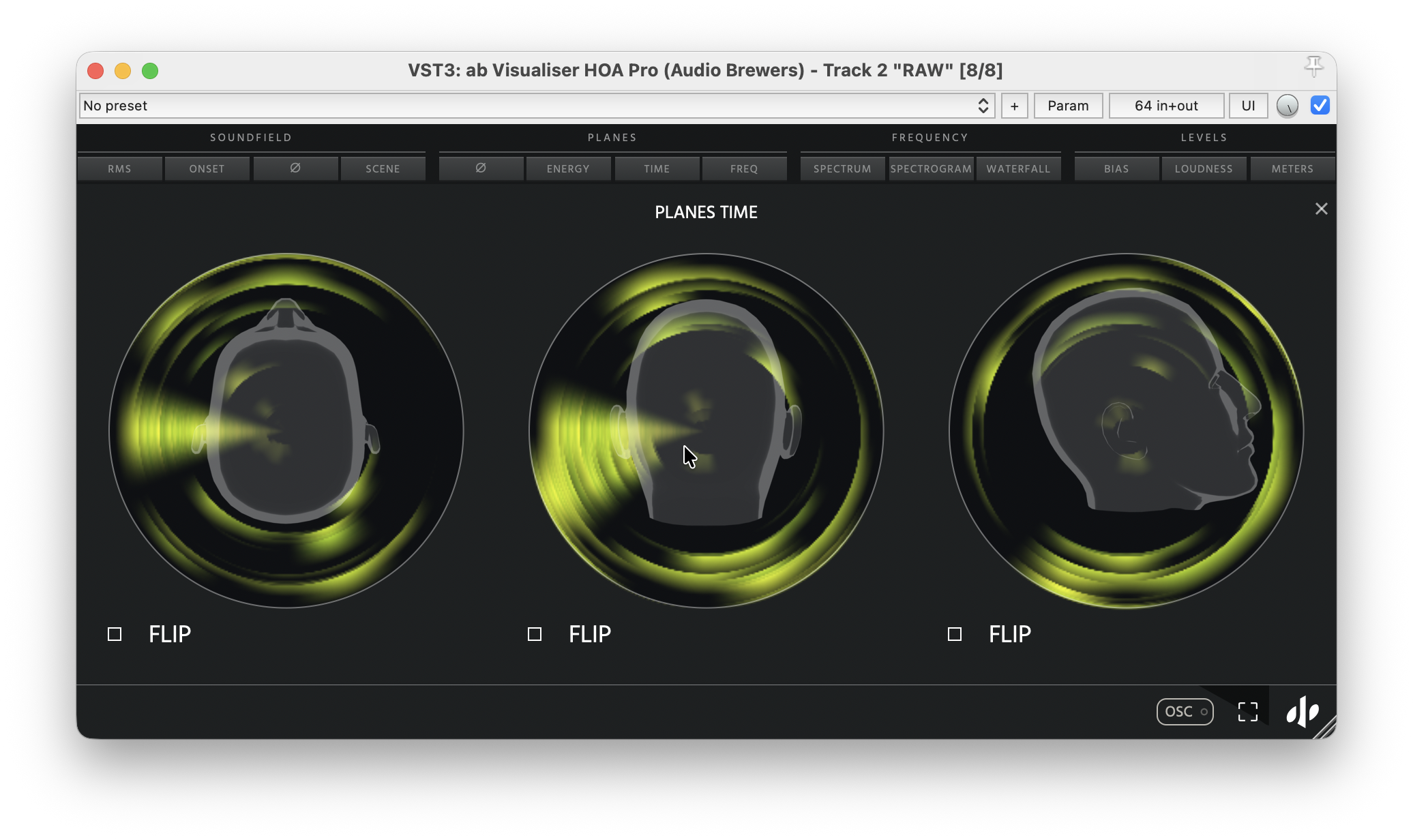
The Time Visualiser displays the evolution of spatial RMS energy across three perpendicular planes, allowing you to observe how sound energy changes over time throughout your Ambisonics soundfield.
Unlike the Energy Visualiser, which displays the current energy distribution, the Time Visualiser provides a continuous history of directional loudness, with sound activity moving inward towards the listener as time progresses.
Sound levels are represented using a colour scale ranging from dark green through green, yellow, orange, and red, while transient activity is highlighted in blue, making it easier to distinguish sudden attacks from sustained sound energy.
This allows you to identify how sound sources move, how their levels change, and how transient events develop throughout your immersive audio mix.
FLIP: Each plane features an independent FLIP checkbox, allowing you to reverse its orientation to match your preferred viewing perspective.
Planes Frequency (PRO ONLY)
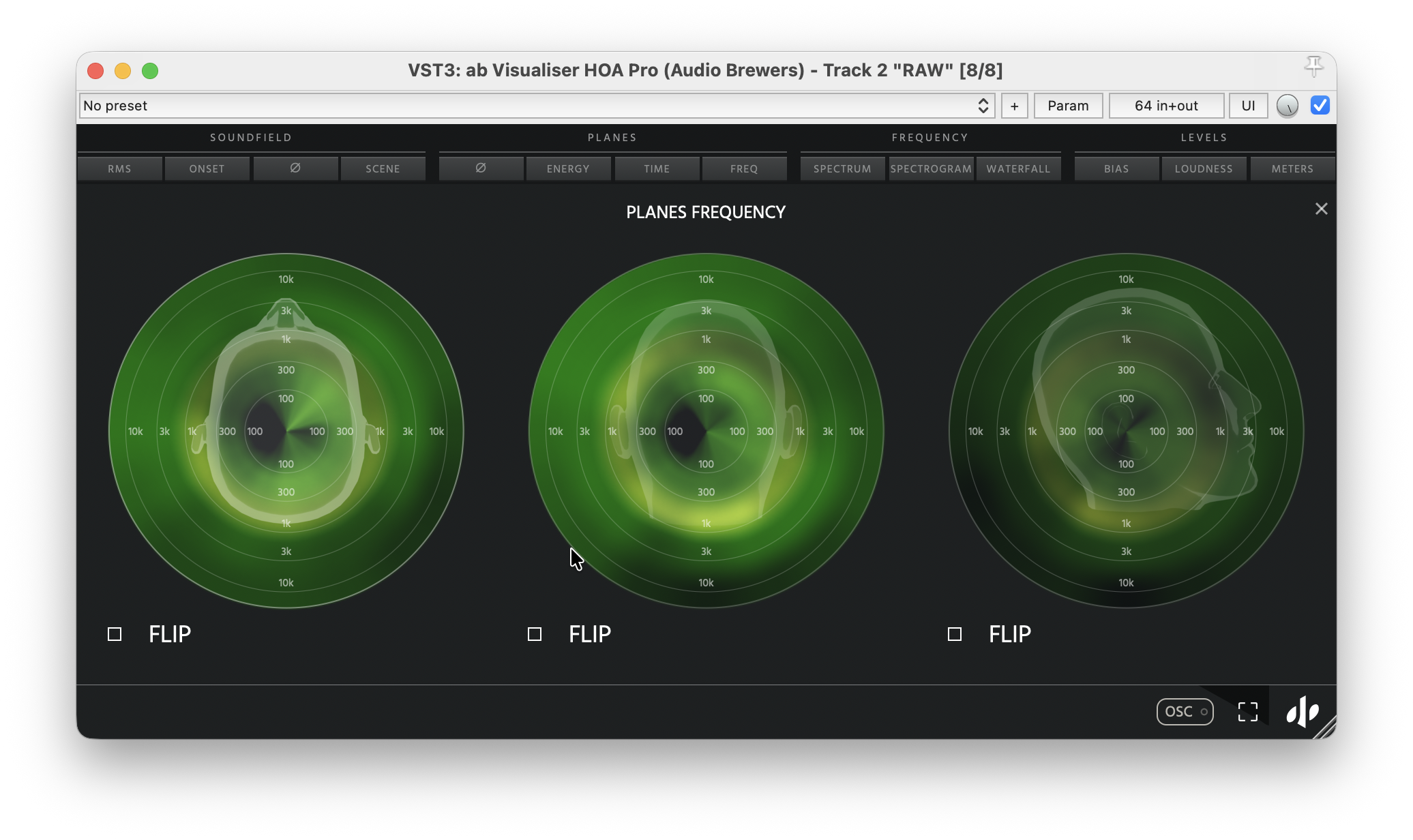
The Frequency Visualiser provides a real-time representation of how different frequencies are distributed throughout your Ambisonics soundfield, displayed across three perpendicular planes.
Using concentric frequency rings, the visualiser displays lower frequencies closer to the listener and progressively higher frequencies towards the outer edges. Each ring represents a different frequency range, allowing you to identify not only which frequencies are present, but also where they originate within your three-dimensional soundfield.
For example, low-frequency energy arriving from the front will illuminate the inner rings in the corresponding direction, while high-frequency content arriving from above will appear towards the outer rings at the top of the visualisation.
This makes it easier to identify directional frequency imbalances, locate problematic frequency concentrations, and understand how different frequency ranges are distributed throughout your immersive audio mix.
FLIP: Each plane features an independent FLIP checkbox, allowing you to reverse its orientation to match your preferred viewing perspective.
Frequency Visualisers
The Frequency Visualisers provide detailed, real-time spectral analysis of your Ambisonics soundfield, allowing you to explore how different frequencies are distributed across your immersive audio mix.
Unlike traditional spectrum analysers, these visualisers allow you to analyse the entire soundfield, isolate any of the six spatial directions (Front, Back, Left, Right, Top, and Bottom), or examine up to four custom spatial regions defined using the Brush Tool.
This category includes three visualisers: Spectrum (PRO ONLY), Spectrogram (PRO ONLY), and Waterfall (PRO ONLY), each offering a different perspective on the frequency content of your three-dimensional soundfield.
Frequency Spectrum (PRO ONLY)
The Spectrum Visualiser provides a real-time frequency analysis of your Ambisonics soundfield, allowing you to examine the spectral content of individual spatial regions rather than analysing the entire mix as a single signal.
You can simultaneously analyse and compare multiple regions of your soundfield, each represented by an independent, colour-coded frequency spectrum.
Spatial Selection: Use the buttons at the bottom of the visualiser to select which regions you want to analyse:
ALL: Analyse the entire Ambisonics soundfield.
LEFT, RIGHT, FRONT, BACK, TOP, BOTTOM: Isolate and analyse any of the six spatial directions.
Custom Regions (1–4): Analyse specific areas of the soundfield previously defined using the Brush Tool.
Additional Controls
HSR (High Sample Rate): Extends the frequency display beyond the standard audible range, up to the Nyquist frequency of your session’s sample rate.
Resolution: Adjusts the spectral analysis resolution, allowing you to examine frequency content with greater or lesser detail.
Smoothing: Controls the visual smoothing of the frequency curves, making it easier to distinguish broad spectral trends from individual frequency peaks.
Frequency — Spectrogram (PRO ONLY)
The Spectrogram Visualiser provides a real-time, colour-coded representation of your Ambisonics soundfield’s frequency content over time, allowing you to observe how spectral energy evolves across different spatial regions.
Unlike the Spectrum Visualiser, which displays the current frequency distribution, the Spectrogram reveals how frequencies change over time, making it easier to identify persistent resonances, transient activity, and evolving spectral patterns throughout your immersive audio mix.
Brighter colours indicate stronger spectral energy, while darker colours represent quieter frequency content.
Spatial Selection: Use the buttons at the bottom of the visualiser to simultaneously analyse and compare multiple spatial regions, including the entire soundfield, the six spatial directions (Front, Back, Left, Right, Top, and Bottom), and up to four custom regions defined using the Brush Tool.
Additional Controls
Range: Adjusts the minimum and maximum levels displayed, allowing you to focus on a specific dynamic range.
Contrast: Controls the visual contrast of the spectrogram, allowing you to emphasise louder spectral components or reveal quieter details.
HSR (High Sample Rate): Extends the frequency display beyond the standard audible range, up to the Nyquist frequency of your session’s sample rate.
Resolution: Adjusts the spectral analysis resolution, allowing you to examine frequency content with greater or lesser detail.
Interactive Analysis & Zoom
Frequency & Level Inspection: Hover your cursor over any point in the spectrogram to display its corresponding frequency and loudness level.
Selection Zoom: Click and drag to draw a rectangular selection around any area of interest. The spectrogram automatically zooms into the selected region for closer inspection.
Manual Zoom: Use the zoom controls in the bottom-left corner to zoom in or out, allowing you to navigate the spectrogram and adjust the level of detail displayed.
Frequency Waterfall (PRO ONLY)
The Waterfall Visualiser provides a real-time, three-dimensional representation of your Ambisonics soundfield’s frequency spectrum over time, allowing you to observe how spectral energy evolves across different spatial regions.
Unlike the Spectrum Visualiser, which displays the current frequency distribution, the Waterfall displays successive frequency spectra extending into the past, making it easier to identify persistent resonances, frequency build-ups, and changes in spectral energy throughout your immersive audio mix.
Each frequency spectrum is represented by a colour-coded curve, allowing you to simultaneously compare the spectral behaviour of multiple spatial regions.
Spatial Selection: Use the buttons at the bottom of the visualiser to simultaneously analyse and compare multiple spatial regions, including the entire soundfield, the six spatial directions (Front, Back, Left, Right, Top, and Bottom), and up to four custom regions defined using the Brush Tool.
Additional Controls
Speed: Adjusts how quickly the waterfall moves. Move the slider to the right for faster movement and more immediate spectral updates, or to the left for slower movement and a longer view of past spectral activity.
Range: Adjusts the minimum and maximum levels displayed, allowing you to focus on a specific dynamic range of spectral energy.
Contrast: Controls the visual contrast of the waterfall, emphasising stronger spectral components or revealing quieter details within the selected range.
HSR (High Sample Rate): Extends the frequency display beyond the standard audible range, up to the Nyquist frequency of your session’s sample rate.
Resolution: Adjusts the spectral analysis resolution, allowing you to examine frequency content with greater or lesser detail.
Levels Visualisers
The Levels Visualisers provide real-time analysis of your Ambisonics signal’s levels, loudness, and spatial balance, allowing you to monitor how sound energy is distributed throughout your three-dimensional soundfield.
From identifying directional imbalances to monitoring loudness and individual Ambisonics channels, these visualisers provide essential tools for maintaining consistent levels and spatial accuracy throughout your immersive audio mix.
This category includes three visualisers: Bias (BASIC & PRO), Loudness (PRO ONLY), and Meters (BASIC & PRO), each offering a different perspective on your Ambisonics signal.
Levels Bias (BASIC & PRO)
The Bias Visualiser provides a real-time representation of your Ambisonics soundfield’s directional balance, allowing you to identify where sound energy is concentrated around the listener.
Using two intuitive displays, the visualiser shows the overall spatial bias across all three dimensions:
Horizontal Balance (Left/Right – Front/Back): The main display indicates how sound energy is distributed between the listener’s left, right, front, and back.
Vertical Balance (Top/Bottom): The secondary display indicates whether sound energy is concentrated above or below the listener.
The white indicators move dynamically according to the soundfield’s energy distribution. When centred, they indicate a balanced soundfield, while movement towards a particular direction reveals a greater concentration of energy in that region.
This makes the Bias Visualiser particularly useful for identifying spatial imbalances, directional shifts, and unintended energy concentrations throughout your immersive audio mix.
Levels Loudness (BASIC & PRO)
The Loudness Visualiser provides real-time monitoring of your Ambisonics soundfield’s levels across six spatial directions, allowing you to independently analyse and compare loudness throughout your immersive audio mix.
Unlike traditional level meters, which monitor individual audio channels, the Loudness Visualiser displays six independent, colour-coded meters, corresponding to the Front, Back, Left, Right, Top, and Bottom of your three-dimensional soundfield.
Each directional meter displays RMS, Peak, and Peak Hold levels, alongside the maximum and minimum loudness detected within its corresponding spatial region. This allows you to identify not only the overall level of each direction, but also how sound energy varies within that region.
Meter Indicators
RMS: Displays the average signal level within each spatial direction.
Peak: Indicates the highest instantaneous signal level.
Peak Hold: Retains the highest detected peak for easier monitoring.
Spatial Loudness Range: The thicker bar represents the maximum level within a directional region, while the thinner indicator represents its minimum level, revealing variations in loudness across that area.
Unlike traditional dynamic range measurements, the Spatial Loudness Range represents differences in level across space rather than changes over time.
Levels Meters (PRO ONLY)
The Meters Visualiser provides real-time monitoring of individual Ambisonics channels, allowing you to analyse signal levels across every channel of your Higher-Order Ambisonics (HOA) soundfield.
Supporting Ambisonics up to Seventh Order (7OA), the visualiser displays up to 64 independent, colour-coded level meters, organised by Ambisonics order, from 0OA through 7OA.
Unlike the Loudness Visualiser, which monitors six spatial directions, the Meters Visualiser displays the levels of individual Ambisonics channels, making it easier to identify channel imbalances, monitor signal integrity, and detect potential clipping throughout your immersive audio mix.
Meter Indicators
Individual Channel Levels: Each Ambisonics channel features an independent meter displaying its signal level in real time.
Colour-Coded Levels: Green indicates lower signal levels, transitioning through yellow and orange to red as levels approach 0 dBFS.
Decibel Scale: A calibrated dBFS scale allows you to monitor signal levels accurately.
Ambisonics Order Grouping: Channels are organised by Ambisonics order, allowing you to easily identify and compare the energy distribution across different spherical harmonic components.
This makes the Meters Visualiser particularly useful for monitoring Higher-Order Ambisonics recordings, identifying problematic channels, and verifying signal levels throughout your spatial audio workflow.
Soundfield Scene (PRO ONLY)
The Scene Visualiser provides a fully customisable environment for visualising your Ambisonics soundfield in real time, combining multiple spatial analysis layers into a single interactive display.
Supporting both 2D and interactive 360° visualisation, Scene allows you to explore your three-dimensional soundfield from any perspective, customise how different spatial characteristics are displayed, and adjust the visualisation’s field of view to match your preferred framing.
Window Controls
The Scene Visualiser includes dedicated window controls:
Maximise: Expands the Scene Visualiser to occupy the main screen, making it suitable for full-screen monitoring, presentations, and projection environments.
Information (i): Displays technical information about the currently loaded media, including audio or video details when available.
Close (X): Closes the Scene Visualiser module.
Visualisation Layers
At the top of the Scene Visualiser, four buttons allow you to independently enable or disable different spatial analysis layers:
dB × Phase: Combines RMS energy and phase coherence information into a single visualisation, revealing the relationship between sound intensity and spatial coherence.
RMS: Displays the directional energy distribution throughout your Ambisonics soundfield.
Phase: Displays phase coherence, distinguishing coherent sound sources from diffuse or out-of-phase information.
Peaks: Highlights transient activity, allowing you to identify sudden attacks throughout the soundfield.
You can display any combination of these four layers simultaneously, or isolate a single layer for more focused analysis.
Each layer features three independent controls:
Opacity: Adjusts the transparency of the selected layer.
Hue: Changes the colour hue of the selected layer.
Blending Mode: Determines how the layer interacts visually with the other enabled layers. Available modes include Normal, Add, Screen, Multiply, Overlay, and Lighten.
Important: The RMS, Phase, and Peaks layers share their visualisation settings with the corresponding Soundfield Visualisers. Adjusting their focus or threshold sliders in the Soundfield Visualisers also affects how these layers appear in Scene.
Scene Display Controls
The Scene Visualiser offers two viewing modes, allowing you to explore your Ambisonics soundfield in either a conventional two-dimensional projection or an interactive three-hundred-and-sixty-degree environment.
Additional controls include:
Grid: Shows or hides the reference grid within the scene.
Master Opacity: Adjusts the overall transparency of all enabled visualisation layers simultaneously.
Master Hue: Adjusts the overall colour hue of all enabled visualisation layers simultaneously.
These master controls allow you to modify the appearance of the complete visualisation without changing the individual settings of each layer.
2D View
The 2D View displays your Ambisonics soundfield as a two-dimensional projection, allowing you to focus on specific directions and precisely control how much of the soundfield is visible.
Six directional buttons — Front, Back, Left, Right, Top, and Bottom — allow you to instantly centre the visualisation on any of the six dimensional directions.
Two independent controls determine the visible area:
Vertical Field of View: Adjusts the vertical viewing angle from 1° to 180°.
Horizontal Field of View: Adjusts the horizontal viewing angle from 2° to 360°.
By adjusting these values, you can narrow or expand the visible portion of the soundfield, making it possible to match the visualisation’s framing to specific camera lenses, video perspectives, or projection requirements.
360° View
The 360° View provides an interactive environment for freely exploring your entire Ambisonics soundfield from any direction.
As in the 2D View, six directional buttons — Front, Back, Left, Right, Top, and Bottom — allow you to instantly focus on a specific side of the soundfield.
Additionally, you can navigate the scene interactively:
Click & Drag: Rotate your viewing perspective freely in any direction, allowing you to explore the complete three-dimensional soundfield.
Scroll Wheel: Zoom in up to 300% for a closer view of specific spatial details, or zoom out until the entire soundfield is displayed as a two-dimensional projection.
This flexibility allows you to move seamlessly between detailed spatial inspection and a complete overview of your immersive audio environment.
Scene Video Integration
The Scene Visualiser in ab Advanced Visualiser HOA Pro allows you to combine Ambisonics audio visualisation with conventional and 360° video footage. Spatial information can be displayed directly over the video, making it possible to analyse how the soundfield relates to the recorded image.
Loading a Video
To load a video, simply drag and drop a video file into the Scene Visualiser, or click Load Video to select a file from your computer.
When a video is loaded, ab Advanced Visualiser HOA Pro automatically examines its metadata to identify the camera or lens used. When suitable information is available, the visualisation’s field of view is adjusted automatically to match the footage.
If the video does not contain the necessary metadata, you can configure the viewing angle manually.
Photo by: Ariel Quesada @arielestudioinmersivo
2D and 360° Video
Video footage can be displayed in either 2D or 360° mode, regardless of the original video format.
Native 360° footage is projected across the immersive scene, allowing you to explore the video and its corresponding Ambisonics soundfield together.
Conventional 2D footage can also be displayed in 360° mode, where it appears as a flat screen within the three-dimensional environment. This is particularly useful when working with conventional camera footage accompanied by Ambisonics audio, allowing you to visualise the complete spatial soundfield even when the video itself is not immersive.
In 360° mode, an additional Yaw control allows you to rotate the video horizontally, aligning its forward direction with the front of the Ambisonics soundfield.
Lens and Camera Calibration
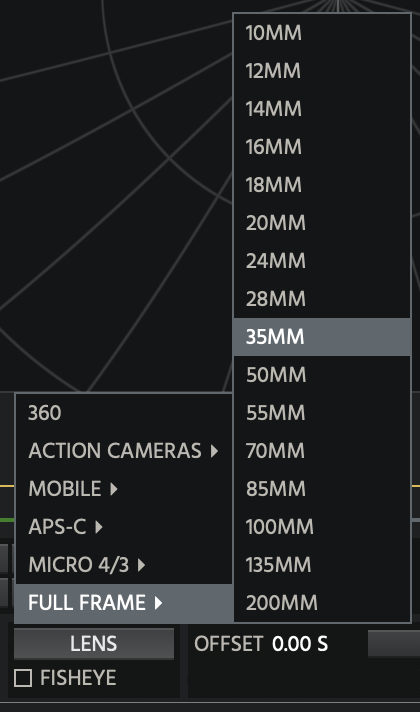
When working with conventional video, the Lens control provides camera and lens presets to help match the visualisation’s field of view to the original footage.
Presets are available for Full Frame, APS-C, Micro Four Thirds, Mobile devices, and Action Cameras, including different focal lengths and camera configurations.
A dedicated Fisheye option is also available for footage recorded using wide-angle or fisheye lenses, such as those commonly found in action cameras.
These controls are particularly useful when automatic lens identification is unavailable, allowing you to manually align the spatial visualisation with the perspective of the video.
Video Playback and Synchronisation
When used inside a DAW, the Scene Visualiser follows the DAW timeline, keeping video playback aligned with your audio session.
An adjustable Offset control allows you to compensate for differences between the video’s starting point and the DAW timeline, ensuring that the footage and Ambisonics audio remain synchronised.
Video playback and scrubbing controls also allow you to navigate the footage directly from the Scene Visualiser, making it easy to locate and inspect specific moments.
Integration with ab Spatial Ambisonics Recorder
ab Advanced Visualiser HOA Pro integrates directly with ab Spatial Ambisonics Recorder for iOS, allowing you to combine video footage and Ambisonics audio captured on your iPhone in an interactive 360° environment.
Videos recorded with ab Spatial Ambisonics Recorder contain additional metadata describing the phone’s orientation, inclination, portrait or landscape positioning, and camera configuration, including front, rear, and dual-camera recording.
When you import one of these recordings, ab Advanced Visualiser HOA Pro automatically recognises the metadata and adjusts the video projection accordingly, allowing you to visualise the recorded soundfield alongside the footage without manually configuring the camera’s orientation.
Importing Your Recordings
First, export your recording from ab Spatial Ambisonics Recorder with uncompressed Ambisonics audio included.
Then, simply drag and drop the exported video into the Scene Visualiser.
In 2D mode, the footage appears as a conventional video, with the Ambisonics visualisation overlaid on the image.
In 360° mode, the video is positioned within the panoramic environment according to the camera configuration and recorded orientation metadata.
Lock World - Turn Your Recordings into a 360° Panorama
When ab Advanced Visualiser HOA Pro detects compatible orientation metadata from ab Spatial Ambisonics Recorder, an additional Lock World button becomes available.
Normally, the video follows the camera’s perspective: whichever direction the phone is pointing becomes the front of the visualisation.
With Lock World enabled, the video is instead positioned according to the phone’s recorded orientation in the physical world.
As you rotate your phone during recording, new video frames are projected into their corresponding directions, while previously captured frames remain visible. This progressively fills the surrounding 360° environment, effectively allowing you to paint a panoramic scene simply by moving your phone.
For example, you could begin recording directly in front of you, turn towards your right, and then continue rotating behind you. With Lock World enabled, each recorded view remains positioned in its corresponding direction, gradually building a panoramic representation of your surroundings.
This allows you to explore a much wider visual environment than the camera’s original field of view, while simultaneously analysing the Ambisonics soundfield.
Keeping Ambisonics Audio Aligned with Lock World
When Lock World is disabled, the front of the visualisation corresponds to the direction the phone’s camera is facing.
When Lock World is enabled, the visualisation uses a fixed world orientation instead. This means the Ambisonics audio must also be compensated for the phone’s rotation to preserve the correct relationship between visible objects and their corresponding sound sources.
When using ab Advanced Visualiser HOA Pro inside a DAW, we recommend inserting ab Rotator HOA into your Ambisonics signal chain.
The two plugins communicate automatically in Lock World mode, allowing ab Rotator HOA to compensate for the phone’s recorded rotation and maintain the correct spatial alignment between audio and video.
For example, a sound source positioned to your right in the real world remains on your right, even if you rotate your phone to face another direction.
This creates a consistent world-fixed reference for both the video projection and the Ambisonics soundfield.
Dual-Camera Recordings
ab Advanced Visualiser HOA Pro also supports recordings made using the Dual Camera mode of ab Spatial Ambisonics Recorder.
When a dual-camera recording is imported, the Scene Visualiser automatically recognises the format and separates the two camera views.
In the 360° environment, the front camera is projected towards the front of the scene, while the rear camera is projected towards the back.
This allows you to visualise footage captured in opposite directions simultaneously, providing a substantially wider horizontal perspective than a single camera.
When Lock World is enabled, both camera views contribute to the panoramic projection as the phone rotates, progressively filling the surrounding environment from both directions.
OSC (Pro Only)
ab Advanced Visualiser HOA Pro includes an advanced OSC (Open Sound Control) output system, allowing you to transmit spatial audio analysis data to external applications in real time.
Using OSC, you can turn your Ambisonics soundfield into a source of control data for interactive visuals, lighting systems, multimedia installations, and other OSC-compatible environments.
Rather than simply transmitting audio levels, ab Advanced Visualiser HOA Pro analyses the spatial characteristics of your soundfield, identifying individual sound sources and transmitting information about their position, intensity, phase coherence, transient activity, and spectral characteristics.
Enabling OSC
To access the OSC settings, click the OSC button located at the bottom-right corner of the plugin.
This opens the OSC configuration panel, where you can enable transmission and configure the destination, update rate, and source-detection parameters.
Enable OSC Send to begin transmitting OSC messages.
Once enabled, a small green indicator appears beside four visualisers:
Soundfield RMS
Soundfield Onset
Soundfield Phase Coherence
Frequency Spectrum
These indicators identify the visualisers associated with the OSC analysis system.
OSC Configuration
The OSC panel provides the following controls:
Enable OSC Send - Enables or disables outgoing OSC transmission.
IP Address - Destination IP address of the OSC receiver. Defaults to 127.0.0.1 for communication with applications running on the same computer.
Port - Destination UDP port. Defaults to 8585.
Addres - Configurable OSC address prefix. Defaults to /abVisualiserPro.
Rate - Controls the OSC transmission frequency, adjustable from 10 to 240 Hz. The default is 60 Hz.
Sources - Sets the maximum number of simultaneously tracked sound sources, from 1 to 16.
Dots - Selects which detected sources are represented by tracking points: Off, All, Transient, or Focus.
Transient - Adjusts the transient-detection setting used by the source-tracking system.
Level - Sets the level range used for source detection, expressed in dB.
Detection - Adjusts the detection setting used to identify individual sound sources.
Each update is transmitted as an OSC bundle, containing the current analysis values.
Visualising Tracked Sources
When OSC is enabled, the supported visualisers can display numbered tracking points representing detected sound sources within the Ambisonics soundfield.
Each point is assigned a unique index, allowing you to identify and follow individual sources as they move through the three-dimensional space.
In the Soundfield visualisers, these points are positioned according to their detected azimuth and elevation.
The tracking display also provides a list of detected sources, showing their corresponding numbers and spatial coordinates.
Up to 16 sources can be tracked simultaneously.
Each source retains its assigned index for as long as it remains active. This allows external applications to follow the movement and behaviour of individual sources without their identities being continuously reassigned.
The Dots control lets you choose whether to display all detected points, focus-related points, transient-related points, or no tracking points.
The Soundfield RMS, Onset, and Phase Coherence visualisers provide complementary views of these detected positions, while the Frequency Spectrum displays the spectral information associated with the analysis.
Understanding the OSC Data
The OSC system provides several categories of spatial and acoustic information.
Spatial Position
The plugin transmits the three-dimensional position of the dominant sound source, as well as the positions of individually tracked sources.
Positions are expressed as X, Y, and Z unit vectors, following the AmbiX coordinate convention:
+X: Front
+Y: Left
+Z: Up
This allows external applications to translate detected sound-source positions into their own three-dimensional environments.
Spatial Focus
Focus describes how concentrated or diffuse a detected sound source is.
Values range from 0 to 1 (Diffuse to Coherent):
Focus information is available for both the dominant source and individually tracked sources.
Spatial Balance
The overall energy balance of the soundfield is transmitted across three axes:
Front / Back
Left / Right
Up / Down
Each axis ranges from −1 to +1, providing a compact representation of the soundfield’s overall directional balance.
RMS Energy
RMS values describe the level of the soundfield and its individual tracked sources.
Values range from 0 to 1, corresponding to a level range of −60 to 0 dBFS.
Transient Activity
Transient messages describe sudden attacks or changes in sound energy.
These are represented by values between 0 and 1, with detected attacks producing pulses that decay over time.
Transient information is available globally and for individual tracked sources.
Spectral Centroid
The spectral centroid provides an indication of the frequency distribution of the analysed sound.
Values are transmitted on a logarithmic scale between 20 Hz and 20 kHz, normalised from 0 to 1.
For example:
0: 20 Hz
0.5: Approximately 630 Hz
1: 20 kHz
Both the overall soundfield and individual tracked sources have their own spectral centroid values.
This information can be used to control external parameters according to the frequency characteristics of the soundfield.
OSC Message Reference
All messages use the configured OSC address prefix.
With the default prefix /abVisualiserPro, a message such as /spatial/pos is transmitted as:
/abVisualiserPro/spatial/pos
The following addresses are appended to the configured prefix:
| Address | Arguments | Range | Description |
|---|---|---|---|
/spatial/pos |
float x, y, z | Unit vector | Position of the dominant source (+x front, +y left, +z up). |
/spatial/pos/i |
float x, y, z | Unit vector | Position of tracked source i (i = 0 to N−1). |
/spatial/focus |
float | 0 to 1 | Beam focus of the dominant source: 1 coherent, 0 diffuse. |
/spatial/focus/i |
float | 0 to 1 | Beam focus of source i. |
/spatial/balance |
float x, y, z | −1 to 1 each | Overall energy balance of the field (front/back, left/right, up/down). |
/energy/rms |
float | 0 to 1 | Overall sound-pressure level, −60 to 0 dBFS. |
/energy/rms/i |
float | 0 to 1 | Level of source i. |
/energy/transient |
float | 0 to 1 | Sudden attacks, held as a decaying pulse. |
/energy/transient/i |
float | 0 to 1 | Transient attacks of source i. |
/spectral/centroid |
float | 0 to 1 | Spectral centroid, logarithmic, 20 Hz to 20 kHz. |
/spectral/centroid/i |
float | 0 to 1 | Spectral centroid of source i, same scale. |
/system/heartbeat |
int | Counter | Once per second; separates silence from a network dropout. |
For example, the position of tracked source 3 is transmitted using:
/abVisualiserPro/spatial/pos/3
Dominant Source
Messages without a source index refer to the overall analysis or, for position and focus, the dominant source.
The dominant source is the loudest currently tracked source. It is not necessarily source 0.
Inactive Sources
When a tracked source becomes inactive, its RMS and Focus values return to zero.
Its last known position and spectral centroid remain available, allowing receiving applications to preserve the source’s last position without interpreting inactivity as an unexpected movement.
Heartbeat and Transport
The OSC system transmits a heartbeat message once per second while OSC sending is enabled.
This allows receiving applications to distinguish between an inactive or silent soundfield and a lost OSC connection.
When the DAW transport is stopped, or the Scene player is stopped in standalone mode, analysis messages are suspended and only the heartbeat continues to be transmitted.
Working with External Applications
Because OSC is a widely supported communication protocol, ab Advanced Visualiser HOA Pro can exchange analysis data with a variety of external creative environments.
For example, you could use the detected position of a sound source to control the location of a visual object, use RMS values to control its brightness, use transient activity to trigger animations, or map spectral centroid values to colour.
With up to 16 individually tracked sources, you can create interactive systems that respond not only to the overall soundfield, but also to the position and characteristics of individual sounds within it.
All OSC messages are transmitted over UDP, allowing compatible applications on the same computer or local network to receive the analysis data.
Standalone Application (Pro Only)
ab Advanced Visualiser HOA Pro includes a fully functional standalone application for Windows and macOS, allowing you to analyse, visualise, and monitor Ambisonics recordings without requiring a DAW or plugin host.
The standalone application provides the same advanced visualisation capabilities as the plugin version, including spatial analysis, frequency analysis, the interactive Scene Visualiser, video integration, and OSC transmission.
Installation and Portability
The standalone application is installed automatically alongside the VST3 plugin and can be found in the corresponding VST3 installation folder.
The application is entirely self-contained and requires no additional external files to operate. You can copy or move the standalone executable to any location on your computer and launch it directly from there.
Supported Audio Formats
The standalone application supports uncompressed PCM WAV files containing Ambisonics audio, from First-Order (1OA) through Seventh-Order (7OA).
Audio files must use the AmbiX format (ACN/SN3D).
Simply drag and drop a compatible WAV file into the application to load it for playback and analysis.
Once loaded, the application automatically identifies the Ambisonics order and configures its visualisers accordingly, allowing you to explore the spatial characteristics of your recording without any additional setup.
Supported Video Formats
In addition to Ambisonics WAV files, the standalone application supports video playback with the following specifications:
Video containers: MP4 and MOV.
Video codecs: H.264 (AVC) and H.265 (HEVC).
Ambisonics audio: Uncompressed PCM.
You can drag and drop a compatible video file directly into the application to load it into the Scene Visualiser.
This allows you to analyse the Ambisonics soundfield alongside its corresponding video footage, including conventional 2D recordings, 360° videos, and recordings created using ab Spatial Ambisonics Recorder for iOS.
All compatible audio and video recordings can be analysed using the application’s visualisation tools.
Automatic Ambisonics-to-Stereo Decoding
When operating in standalone mode, ab Advanced Visualiser HOA Pro automatically decodes the loaded Ambisonics audio into stereo.
This allows you to listen to your recordings directly through conventional stereo headphones or speakers, without requiring an external Ambisonics decoder.
The stereo decoding is provided for monitoring purposes, while the application’s analysis and visualisation tools continue working with the original Ambisonics soundfield.
Whether you load a First-Order Ambisonics recording or a Seventh-Order recording, the application handles the stereo monitoring automatically.
Automatic Soundfield Rotation with Lock World
When loading a video recorded using ab Spatial Ambisonics Recorder, the standalone application can automatically recognise the embedded orientation and rotation metadata.
If the recording contains compatible Lock World information, the Scene Visualiser can use this metadata to position video frames within a world-fixed 360° environment.
Unlike the DAW plugin version, where ab Rotator HOA is used to compensate for the phone’s movement, the standalone application performs this Ambisonics rotation compensation automatically.
When Lock World is enabled, the application adjusts the soundfield orientation according to the recorded movement of the phone, ensuring that the Ambisonics audio remains spatially aligned with the world-fixed video projection.
For example, imagine recording a stationary sound source while turning your phone through 180°. Although the camera changes direction, the sound source remains in the same position in the physical world.
With Lock World enabled, the standalone application compensates for this rotation, allowing the sound source to remain correctly positioned within the panoramic environment.
This functionality is equivalent to the rotation compensation performed by ab Rotator HOA, but is integrated directly into the standalone application.
No additional plugins, manual rotation automation, or external processing are required.
Playback and Analysis
Once a compatible recording has been loaded, you can use the application’s playback controls to navigate through the audio or video while analysing its spatial characteristics.
All the advanced analysis tools remain available, including Soundfield RMS, Onset, Phase Coherence, Frequency Spectrum, Spectrogram, Waterfall, and the interactive Scene Visualiser.
You can arrange multiple visualisers within the modular workspace, allowing you to examine different aspects of the recording simultaneously.
The standalone application also supports OSC transmission, making it possible to send spatial analysis information to external applications while playing back your recordings.
This makes ab Advanced Visualiser HOA Pro a complete standalone environment for reviewing, analysing, and exploring immersive audio recordings, with or without accompanying video.
-
If your audio is not Ambisonics, encode it to any Ambisonics order.
If your audio is Ambisonics, insert it in an Ambisonics track (1OA through 7OA).
Insert this plugin.
Remember to add a decoder at the end of your insert chain to be able to properly listen to the signal.
-
Make sure your signal is Ambisonics (if it’s not, encode it using ‘ab Encoder’
Insert this plugin.
Make sure you use a decoder at the end of the insert chain (e.g. our ab Decoder) to properly listen to the signal.
-
Insert this plugin in an Ambisonics track, and make sure the signal running through it is Ambisonics (encode it to Ambisonics if it’s not)
Remember to select a Decoder (e.g. our ab Decoder) in the panner.
Ambisonics signals are only available in Nuendo / Cubase Pro.
-
Make sure your signal is Ambisonics, encode it to Ambisonics if it isn’t.
Remember to set the track width to at least 4 channels. If the track contains 16 channels, this product will work in 3OA format. If the track has 64 channels, this product will work in 7OA format.
Remember to add a decoder at the end of the Inserts chain.
-
Make sure the signal you work with is Ambisonics, encode it if it isn’t.
Add this plugin to an Ambisonics track
-
Use this plugin in a 9.1.6 track.
Make sure the signal running through it is Ambisonics.
Insert this plugin.
The Panner of your track should always be a Decoder (we suggest ‘ab Decoder HOA).